Most banks send statements as PDF, and TallyPrime cannot read a PDF on its own. Typing 200 bank lines by hand takes hours and invites mistakes. With QuikAccount you scan the PDF into Excel, let Auto Ledger fill the party names, and post every line to TallyPrime as receipt, payment or contra vouchers in a few minutes.
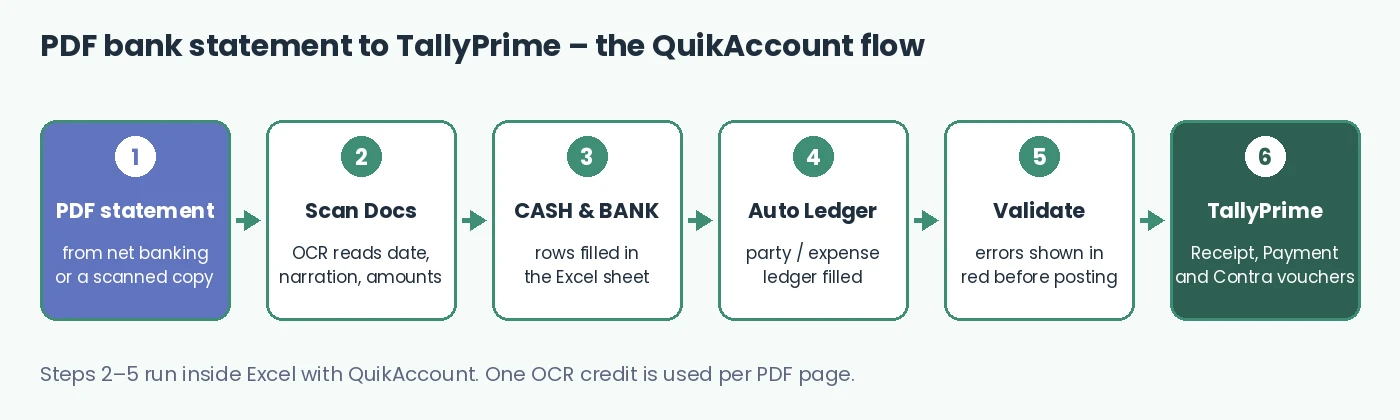
In short: Connect Tally → Scan Docs on the CASH & BANK sheet → check dates and amounts → Auto Ledger → Validate → Export to Tally.
Need help? Call or WhatsApp 93584-44502. Free installation and demo support.

Already have the statement in Excel from net banking? Skip Scan Docs and paste the columns straight into the sheet – no OCR credit is used.
OCR is very accurate on clear PDFs, but always look over the sheet before posting:
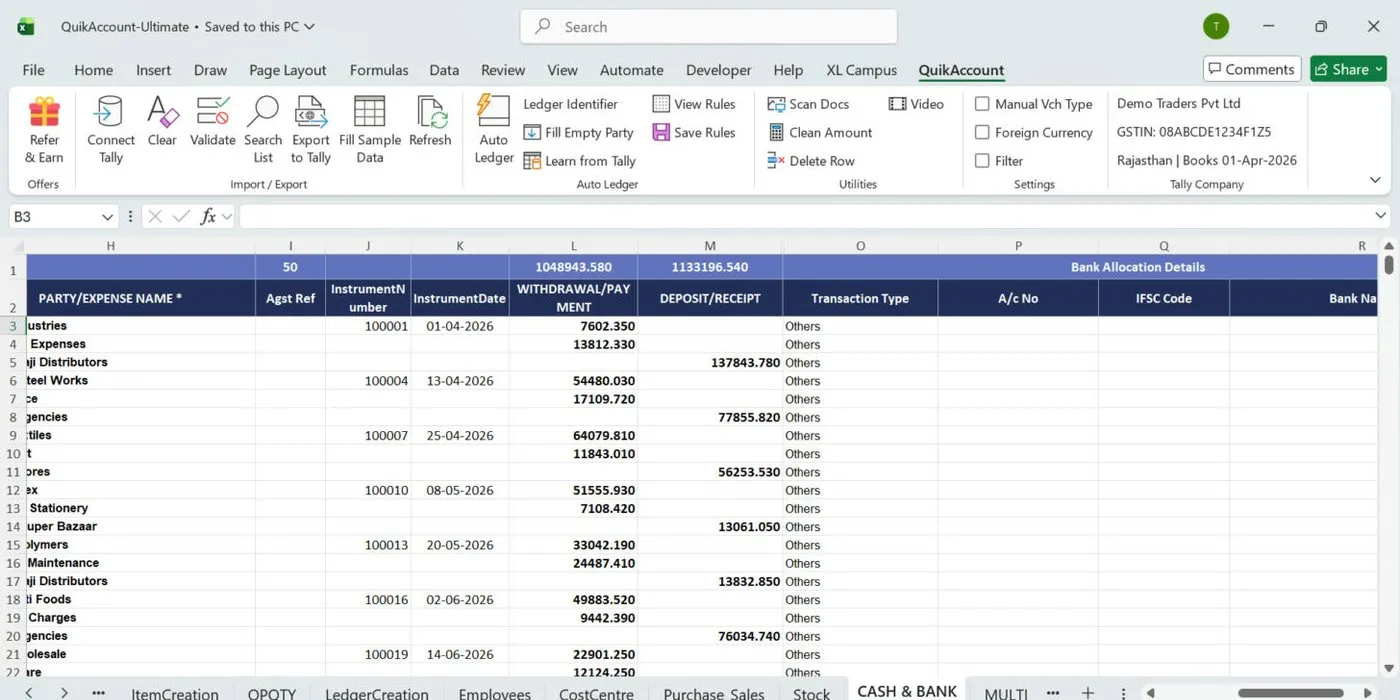
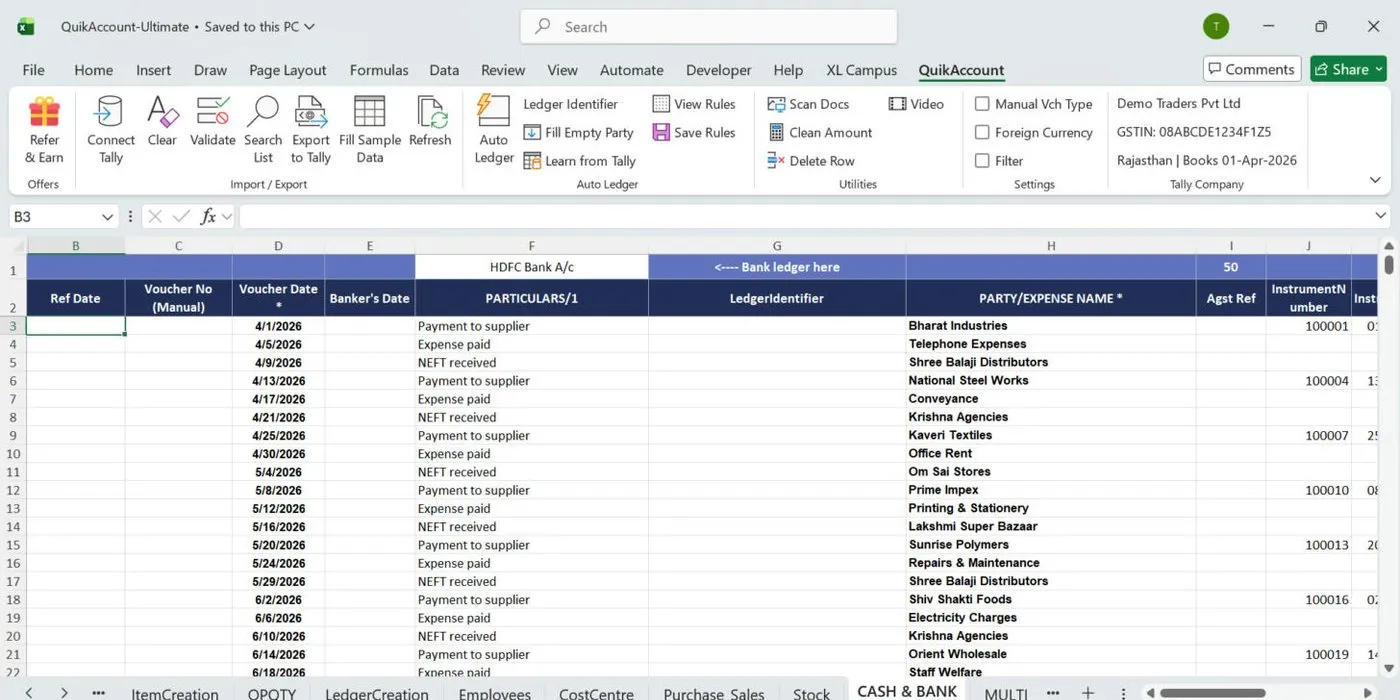
The voucher type is decided for each row: Contra when the ledger in column H is a cash or bank ledger, Payment when there is a withdrawal, otherwise Receipt. Tick Manual Vch Type to choose it yourself in column A.
| Message | What to do |
|---|---|
| Please put data in either deposit side or withdrawal side | Keep an amount in only one of the two columns; leave the other blank, not 0. |
| Date … is not within the financial year selected | Select the right Financial Year on the Registration sheet, or correct the date. |
| Validation Failed – new ledgers have been transferred to Ledger sheet | Export the new ledgers from LedgerCreation, then validate again. |
| In trial version you can not process more than 50 entries at a time | Export in batches of 50, or buy the licence. |
| Tally is running on Educational Mode | Educational Tally accepts entries only on the 1st and 2nd of a month. Use a licensed Tally. |
No. TallyPrime’s own bank statement import takes CSV or Excel files downloaded from the bank portal, but not PDF statements or Excel files converted from PDF (Tally help). QuikAccount fills this gap: Scan Docs reads the PDF into Excel and QuikAccount posts the rows to Tally as vouchers.
Yes. Scan Docs reads digital PDFs as well as scanned PDFs and JPG photos. The entries can be posted to TallyPrime (any release) or Tally.ERP 9.
Yes. When you click Export to Tally, answer No to the question about sending data to Tally. Click Software Folder on the Registration tab; the file is filexml.xml. Import it in Tally with Import → Transactions.

Dates, narration, cheque numbers and amounts are read from the PDF.
Digital PDF, scanned PDF or a photo (JPG) of the statement.
Party and expense ledgers filled from rules learnt from your Tally data.
Voucher type decided automatically for every line.
Validate shows wrong dates, missing ledgers and amount errors first.
Fill Banker’s Date and the entries are reconciled in Tally.

0
0
0
For Utility, Support and Service


Recently
Great software, User friendly & Superb support. All GST reports shows accurate results. Multiple formats for each voucher to suit our need. Whatever format of data you have, you can export that to tally. Good Job... QuikAccount Team!

Recently
Software is user-friendly. It provide lot of option to cater your need and give results in desired format. Also it ask for minimum data and most of the fields are either auto-calculated or imported from tally which makes working on this software very faster.

Recently
Superb tool to integrate excel data in Tally. We have imported complex e-commerce reports with this tool and it has imported large data accurately and very fast too. Company provided one click import option for multiple e-commerce platforms.
Share your details and we will get back to you.