Download, install and connect QuikAccount to Tally in about five minutes. Free installation and demo support is available on call.
Need help? Call or WhatsApp 93584-44502. Free installation and demo support.

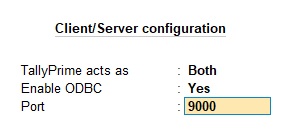
TallyPrime: press F1 (Help) → Settings → Connectivity and set:
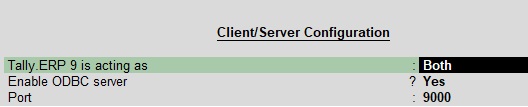
Tally.ERP 9: press F12 → Advanced Configuration and set the same values. Restart Tally after the change.

All masters imported with one click on any sheet.
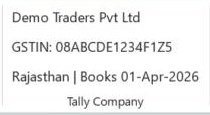
Name, GSTIN, state and books start date shown on the ribbon.
Ledgers and items not in Tally are picked up on Validate.
Missing ledgers and items created in Tally in one click.
No XML file to import by hand.
Double-click any drop-down cell or press Ctrl+Shift+S to search.

0
0
0
For Utility, Support and Service


Recently
Great software, User friendly & Superb support. All GST reports shows accurate results. Multiple formats for each voucher to suit our need. Whatever format of data you have, you can export that to tally. Good Job... QuikAccount Team!

Recently
Software is user-friendly. It provide lot of option to cater your need and give results in desired format. Also it ask for minimum data and most of the fields are either auto-calculated or imported from tally which makes working on this software very faster.

Recently
Superb tool to integrate excel data in Tally. We have imported complex e-commerce reports with this tool and it has imported large data accurately and very fast too. Company provided one click import option for multiple e-commerce platforms.
Share your details and we will get back to you.