QuikAccount does much more than the guides above. Here are the other imports, with short steps.
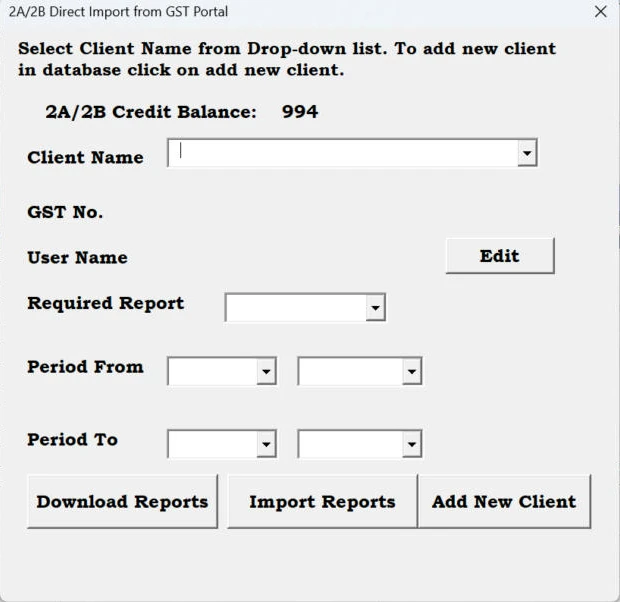
From the E-Com sheet you can import purchase data from GSTR-2A / 2B Excel files, or download 2A, 2B, 4A and GSTR-1 directly from the GST portal (next section) and post them to Tally.
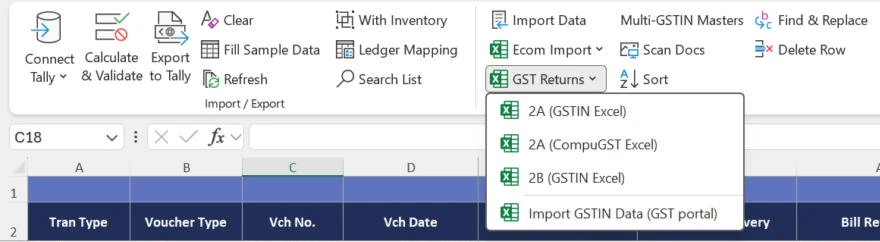
Import only bills not yet booked in Tally, so nothing is entered twice.
Before you start
Steps
Set Transaction Type to Debit Note or Credit Note on the Purchase_Sales sheet and fill the original invoice details in the note columns. Everything else is the same as sales or purchase.
| Import | Sheet |
|---|---|
| Stock journal (consumption and production) | Stock Journal |
| Material in / out and job work | Material_In_Out |
| Payroll vouchers | Payroll (with Employees) |
| Cost centres and employees | CostCentre, Employees |
| Opening stock by batch and godown | OPQTY |
| Amazon settlement, Flipkart payment | bJournal |
| Meesho, Myntra, AJIO sales | E-Com → Ecom Import |
| Purchase bills from PDF or photos | Purchase_Sales → Scan Docs |
| Undo an import | Report → Delete Vouchers (RemoteID) |
Marketplace sales: see Amazon (MTR) Sales and Flipkart Sales. GSTR-2A / 2B: see the GST Returns steps above. For a free demo of any of these, call or WhatsApp +91 93584 44502.

10,000
25,15,40,200
105
For Utility, Support and Service


Great software, User friendly & Superb support. All GST reports show accurate results. Multiple formats for each voucher to suit our needs. Whatever format of data you have, you can export it to Tally. Good job, QuikAccount team!

The software is user-friendly. It provides a lot of options to cater to your needs and gives results in desired format. It also asks for minimum data and most of the fields are either auto-calculated or imported from Tally, which makes working on this software much faster.

Superb tool to integrate Excel data with Tally. We have imported complex e-commerce reports with this tool and it imported large data accurately and very fast. The company provides a one-click import option for multiple e-commerce platforms.
Share your details and we will get back to you.